Control Chromecast with Google TV from your iPhone
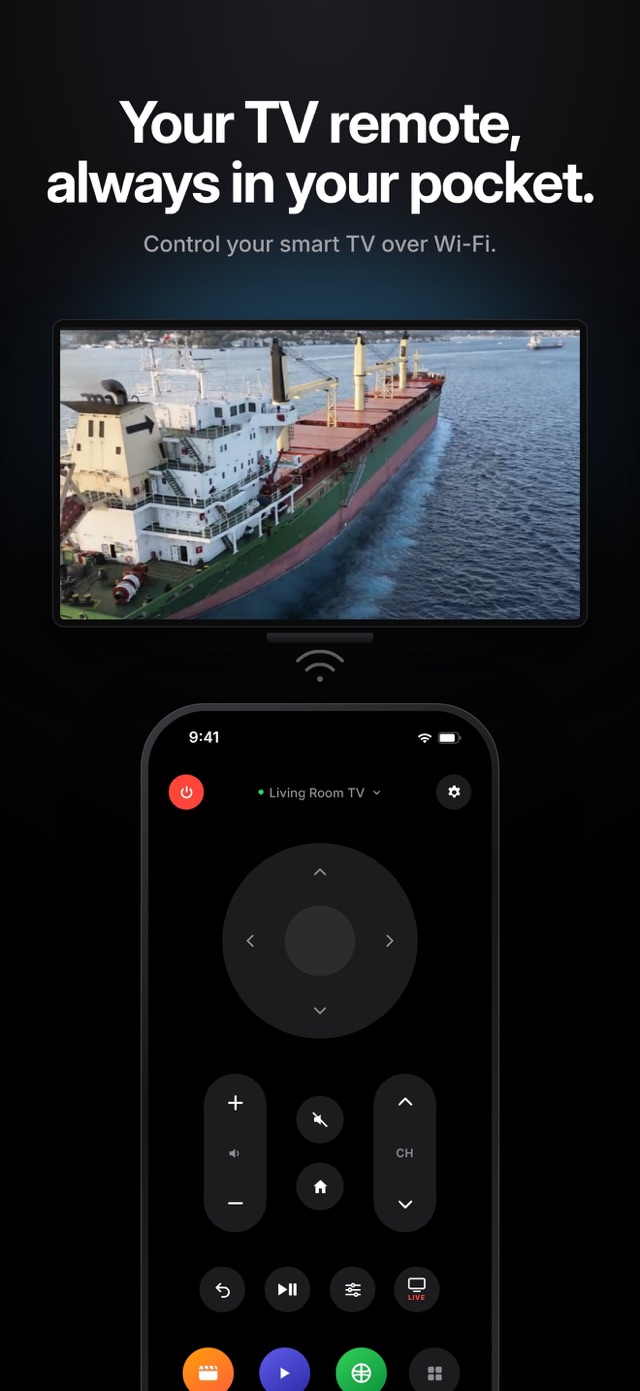
The Chromecast remote is small and easy to lose. If you have Chromecast with Google TV or a Google TV Streamer, your iPhone can take over. Relayo Remote connects over Wi-Fi and gives you navigation, volume and your apps in one place.

How to control Chromecast with your iPhone
- Make sure the TV is on and showing the Google TV home screen.
- Connect your iPhone to the same Wi-Fi network as the Chromecast.
- Open Relayo Remote, select the Chromecast and type the code shown on the TV.
- You're done. The app reconnects automatically from now on.
Which devices work?
Chromecast with Google TV (4K and HD) and Google TV Streamer. Older Chromecast dongles without a remote don't run Google TV and can't be controlled this way.
What you can do
Move around with the directional pad and OK, go home or back, play and pause, change the volume, open settings and launch apps installed on the Chromecast.
Volume control
Volume buttons work when the Chromecast is set up to control your TV's volume (HDMI-CEC). If they don't, check the remote and device settings on the Chromecast.
Frequently asked questions
Can I set up a new Chromecast without the remote?
Relayo Remote works once the Chromecast is set up and connected to your Wi-Fi. The first setup is done with the Google Home app.
Is this the Google TV app?
No. Relayo Remote is an independent app and is not affiliated with Google.
Does it work with Apple TV or Fire TV?
No. Relayo Remote supports Google TV and Android TV, Samsung Tizen and LG webOS.