Control a Hisense TV from your iPhone
Hisense makes TVs with several operating systems. Models that run Google TV or Android TV can be controlled from your iPhone with Relayo Remote over your home Wi-Fi. Here's how to check your TV and get connected.

How to pair your iPhone with a Hisense Google TV
- Check your TV's system: Google TV and Android TV models show the Google TV or Android TV home screen and the Google Play Store.
- Turn on the TV and connect it to the same Wi-Fi network as your iPhone.
- Open Relayo Remote, tap your Hisense TV and enter the code shown on the screen.
- From now on the app reconnects automatically.
Which Hisense TVs work?
Hisense TVs with Google TV or Android TV. Hisense TVs running VIDAA, Roku TV or Fire TV are not supported by Relayo Remote.
What you can do
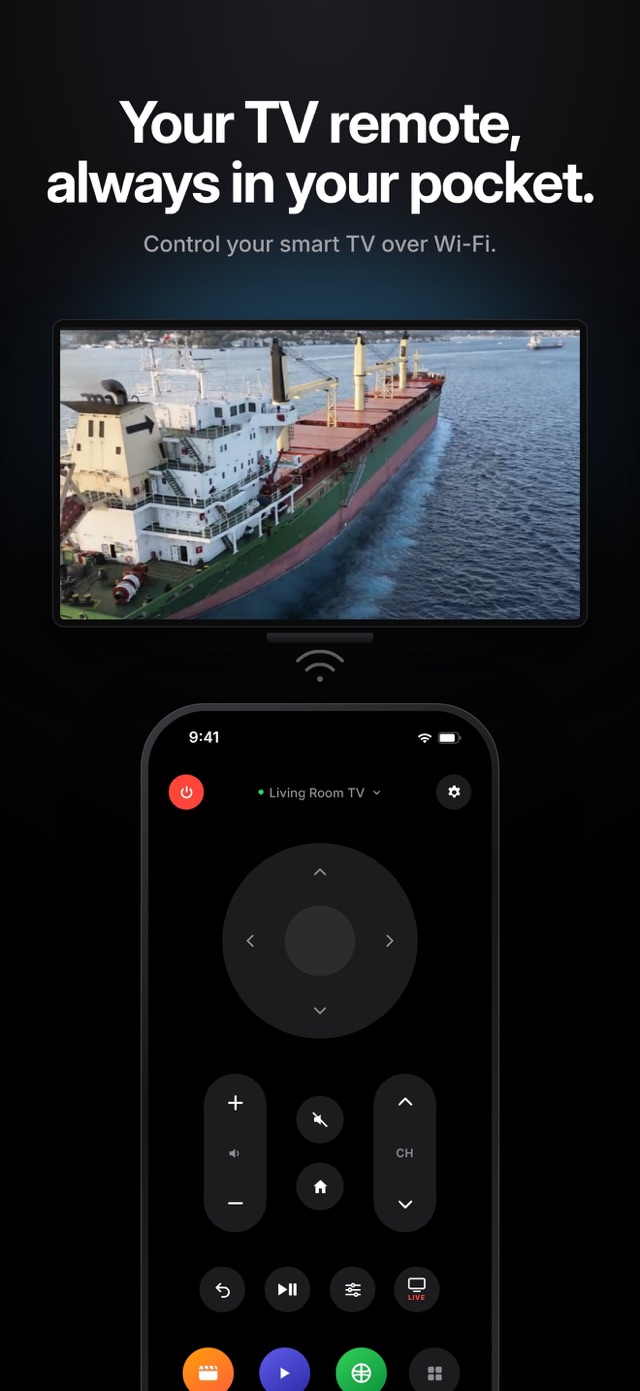
Arrows and OK, volume, channels, mute, power, home and back, play and pause, settings, live TV and launching the apps on your TV.
Tips for a stable connection
Keep the TV and iPhone on the same network band if your router separates them, and avoid guest networks. If the TV has been in standby for a long time it may turn off its Wi-Fi; wake it with the button on the TV.
Frequently asked questions
How do I know if my Hisense TV runs VIDAA?
VIDAA TVs have their own home screen with a VIDAA logo and no Google Play Store. Those models can't be controlled with Relayo Remote.
Is this the official Hisense app?
No. Relayo Remote is an independent app and is not affiliated with Hisense.
The code doesn't appear on my TV.
Make sure the TV is fully on, then select it again in the app. Restarting the TV usually helps if it still doesn't show up.