Control Google TV and Android TV from your iPhone
Many TVs from Sony, TCL, Hisense, Philips, Xiaomi and others run Google TV or Android TV, and so do Chromecast with Google TV and many TV boxes. Relayo Remote turns your iPhone into a fast, clean remote for all of them.

How to pair your iPhone with Google TV or Android TV
- Make sure your TV or streaming device is on and connected to the same Wi-Fi network as your iPhone.
- Open Relayo Remote and tap your TV in the list.
- A short code appears on the TV screen. Type it into Relayo Remote to pair. This is a one-time step.
- Done. Next time, Relayo Remote reconnects automatically.
Which devices work?
TVs and devices running Google TV or Android TV: Sony Bravia, TCL, Hisense, Philips, Xiaomi, Sharp and others, plus Chromecast with Google TV and many Android TV boxes.
What you can do
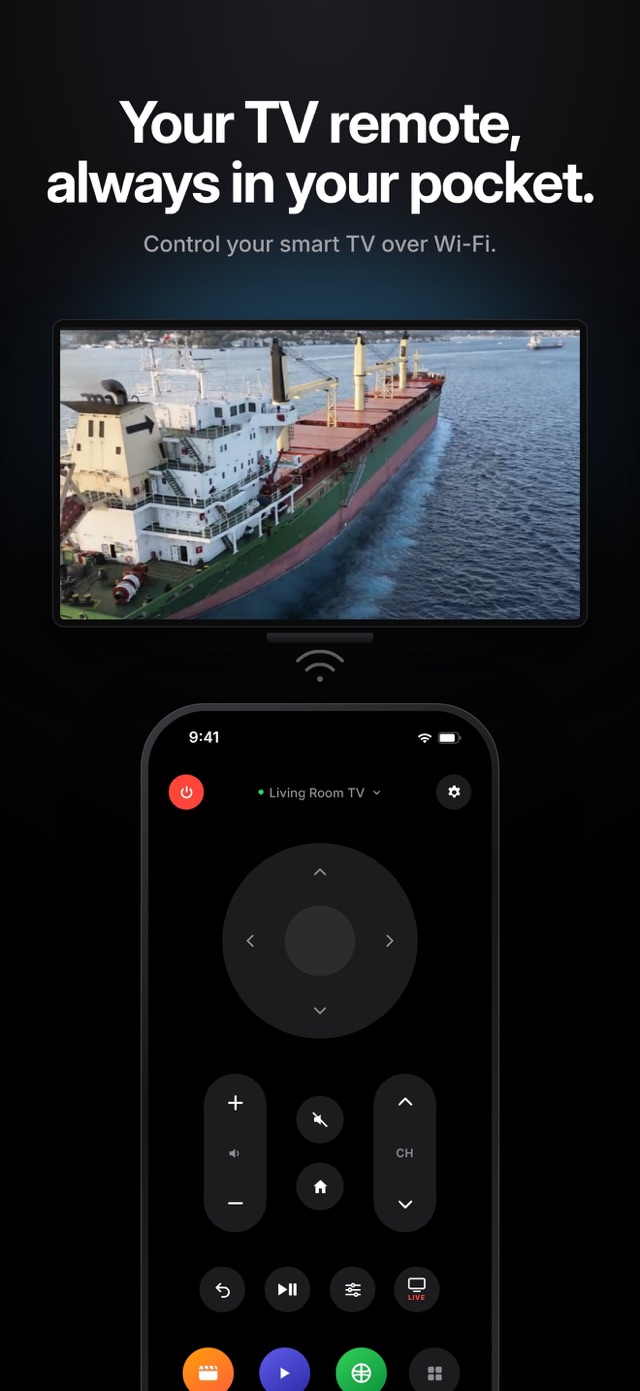
Directional pad and OK, volume and channels, mute, home and back, play and pause, the TV's settings, live TV, and quick access to apps on your TV.
Turning the TV on
The power button works while the TV is in network standby. If the TV has been off for a long time, it may switch off its Wi-Fi to save energy; check your TV's power or network settings for an option to stay connected in standby.
Frequently asked questions
Is this the same as the Google TV app?
No. Relayo Remote is an independent app focused on being a simple, fast remote. It is not affiliated with Google.
The pairing code doesn't appear. What now?
Make sure the TV is on and on the same network, then try again. On some models you need to be on the home screen for the pairing message to show.
Does it work with Chromecast?
It works with Chromecast with Google TV. Older Chromecast dongles without a remote can't be controlled this way.