Control your Sony Bravia TV from your iPhone
Most Sony Bravia TVs from recent years run Google TV or Android TV. That means your iPhone can control them over your home Wi-Fi. Relayo Remote pairs with your Bravia using a short on-screen code and gives you a simple, responsive remote.

How to pair your iPhone with a Sony Bravia TV
- Turn on your Bravia and make sure it is on the same Wi-Fi network as your iPhone.
- Open Relayo Remote and select your Sony TV from the list.
- A short code appears on the TV. Type it into the app. You only need to do this once.
- That's it. The app reconnects to your Bravia automatically next time.
Which Sony TVs work?
Sony Bravia TVs with Google TV or Android TV, which covers most Bravia models from 2015 onwards, including the Bravia XR range. Older Sony TVs without Android TV can't be controlled this way.
What you can do
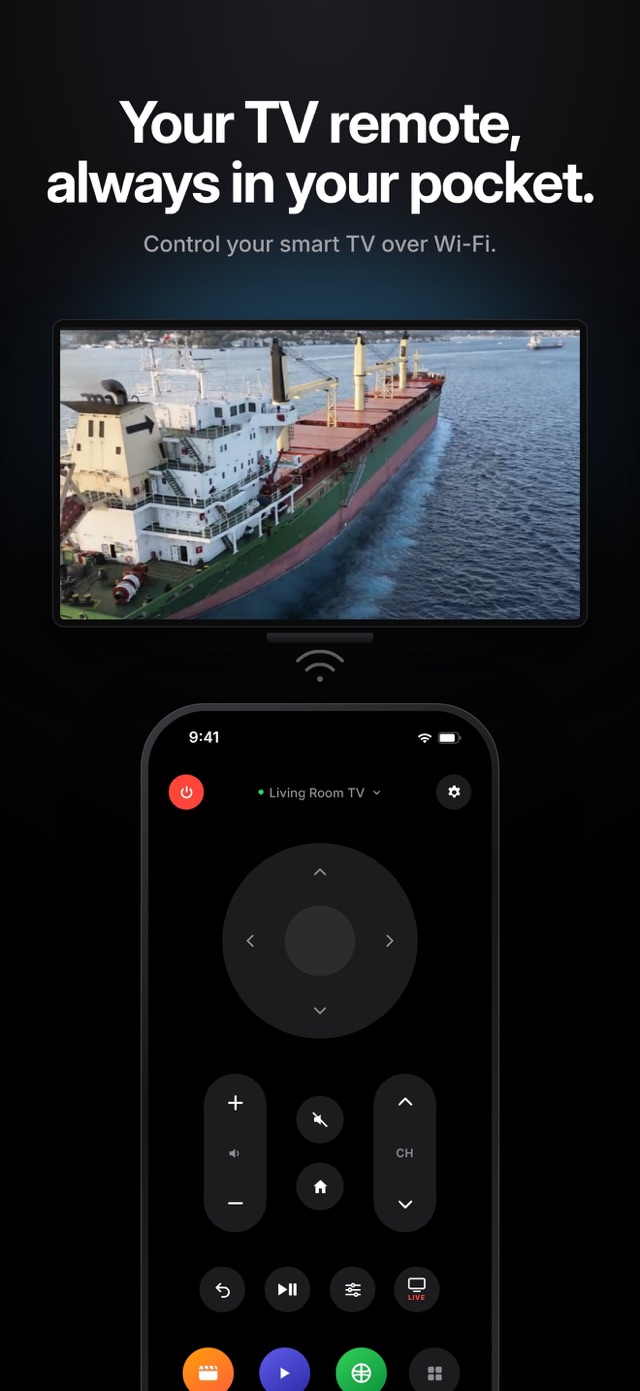
Navigate with the directional pad and OK, change volume and channels, mute, go home or back, play and pause, open the settings menu, jump to live TV and launch the apps installed on your Bravia.
Turning the TV on
You can turn your Bravia off from your phone. Turning it on over Wi-Fi works while the TV keeps its network connection in standby. Look for a setting such as "Remote start" or "Network standby" in your TV's network or system settings.
Frequently asked questions
Is this the official Sony app?
No. Relayo Remote is an independent app and is not affiliated with Sony.
The pairing code doesn't show up. What can I do?
Make sure the TV is fully on and on the home screen, then select it again in the app. If it still doesn't appear, restart the TV and try once more.
Can I open Netflix or YouTube from my phone?
Yes. Open the app list in Relayo Remote and tap any app installed on your Bravia to launch it.