Use your iPhone as an LG TV remote
Your LG Magic Remote is lost again? If your LG TV runs webOS, your iPhone can take over. Relayo Remote connects over your home Wi-Fi and gives you a calm, simple remote with everything you use every day.

How to control an LG TV with your iPhone
- Turn on your LG TV and connect it to the same Wi-Fi network as your iPhone.
- Open Relayo Remote and pick your LG TV from the list.
- Your TV asks whether to allow the connection. Select "Yes" or "Allow" with the TV remote. You only need to do this once.
- From now on, Relayo Remote connects to your LG TV automatically whenever you open it.
Which LG TVs work?
LG smart TVs running webOS, which covers most LG smart TVs from 2014 onwards, including OLED, QNED and NanoCell models. LG TVs without webOS can't be controlled over Wi-Fi.
What you can do
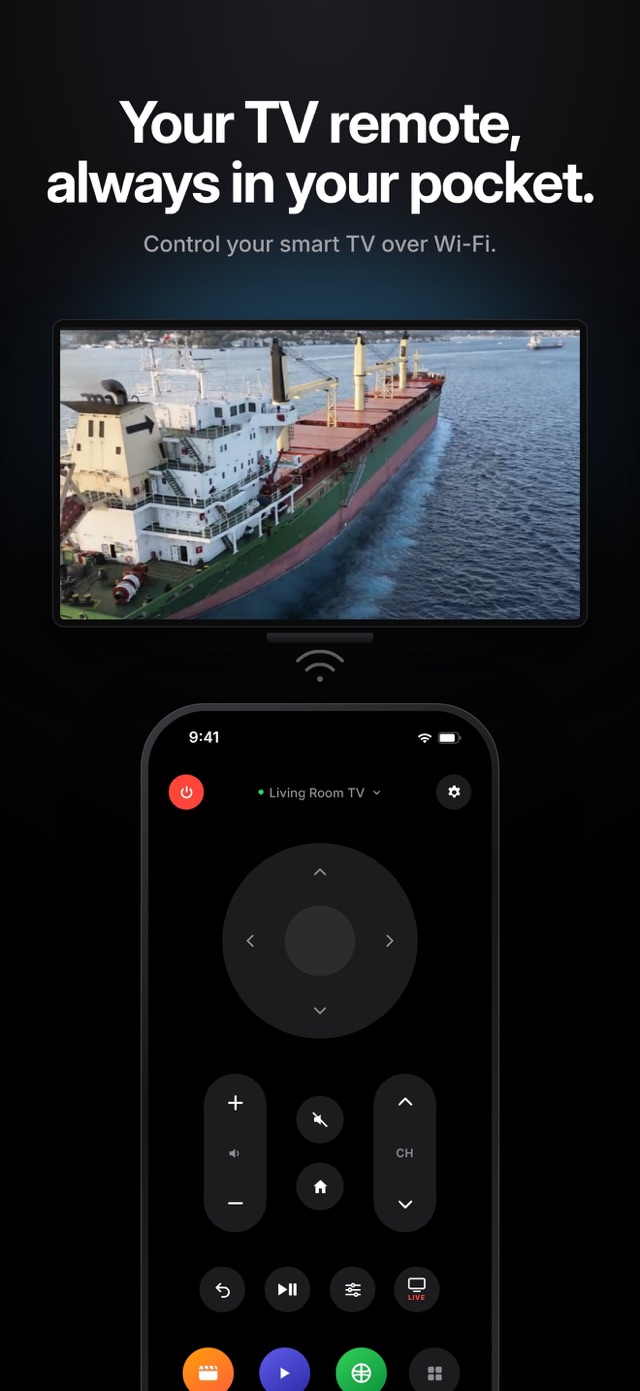
Use the directional pad and OK, change volume and channels, mute, go home or back, play and pause, open the settings menu, jump to live TV and launch the apps installed on your LG TV.
Turning the TV on
You can turn your LG TV off from your phone. To turn it on over Wi-Fi, your TV must keep its network active in standby. Look for "Turn on via Wi-Fi" or "Mobile TV On" in your TV's General or Connection settings.
Frequently asked questions
Does it work with LG Magic Remote features?
Relayo Remote covers the everyday buttons: arrows, OK, volume, channels, home, back, play/pause, settings and live TV, plus opening apps. Pointer and voice features of the Magic Remote are not included.
My LG TV is not found. What should I check?
Make sure the TV is fully on and on the same Wi-Fi network as your iPhone. If you use a guest network or a VPN on your phone, switch it off and try again.
Is my data shared with anyone?
No. Relayo Remote talks to your TV directly on your local network. No account, no sign-up and no personal data collected.