Lost your TV remote? Use your iPhone instead
It's under the sofa, the dog has it, or the batteries just died. Whatever happened, you don't need to stop watching. If your TV is a smart TV, your iPhone can control it over Wi-Fi in less than a minute.

Get control back in under a minute
- Make sure the TV is on. If it's off and you can't find the remote, use the power button on the TV itself.
- Connect your iPhone to the same Wi-Fi network as the TV.
- Open Relayo Remote and choose your TV.
- Confirm the connection on the TV (a code on Google TV, "Allow" on Samsung and LG). If you can't reach the on-screen prompt without a remote, use the buttons on the TV or a plugged-in USB keyboard.
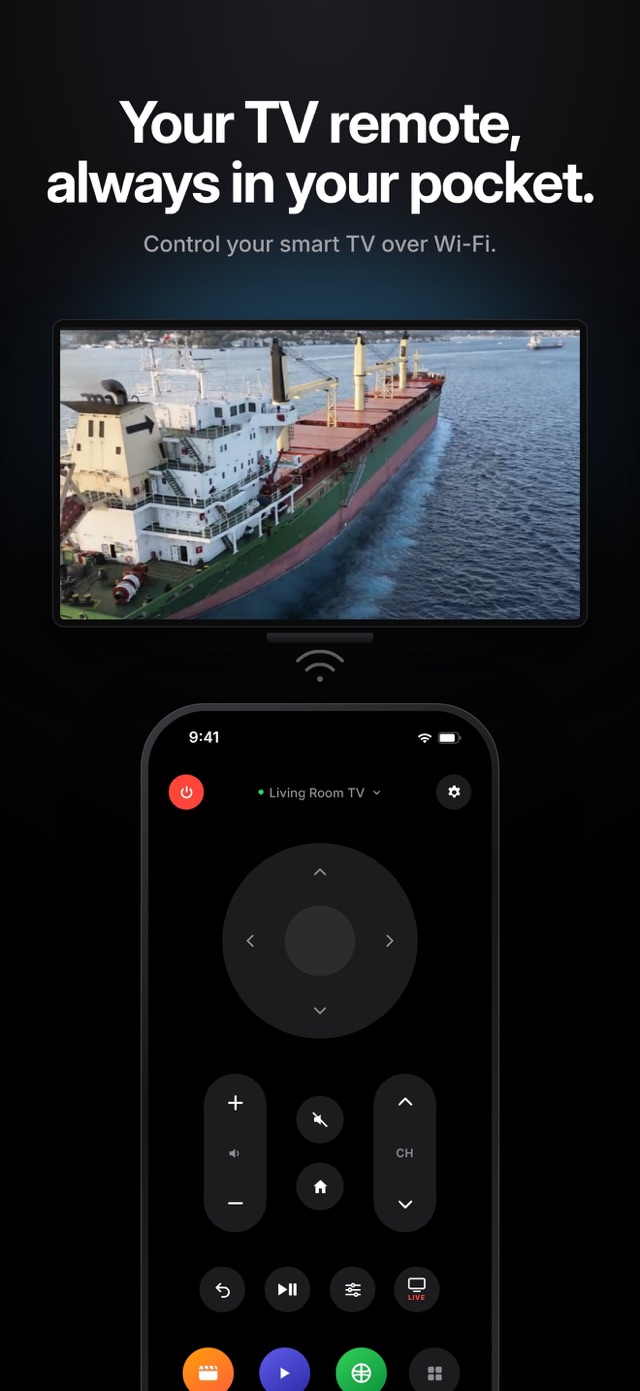
Which TVs work?
Samsung smart TVs with Tizen, LG smart TVs with webOS, and TVs or devices with Google TV or Android TV, including Sony, TCL, Hisense, Philips and Chromecast with Google TV.
Keep it as a second remote
Once paired, Relayo Remote reconnects automatically. Everyone at home can use their own phone, so the remote never goes missing again.
When batteries run out
Your phone is charged far more often than your remote. Pin your favourite apps to the remote screen and you'll rarely reach for the physical remote again.
Frequently asked questions
Can my iPhone control a TV without Wi-Fi?
iPhones don't have an infrared transmitter, so they control TVs over Wi-Fi. The TV must be a smart TV connected to your home network.
Can I turn the TV on from my phone?
Turning a TV on over Wi-Fi works only if the TV keeps its network active in standby. Many TVs have a setting for this, such as "Power On with Mobile" on Samsung or "Turn on via Wi-Fi" on LG.
Do I need an account?
No account and no sign-up. Relayo Remote talks to your TV directly on your local network.